How to Multistream on the Remote Desktop OBS package
Multi streaming is a great way to diversify! We support Multi streaming on our Remote Desktop OBS package, and use the RTMP Multiple Output plugin. This guide will show you how to add destinations. We use Kick for this example, but you can repeat the steps for any streaming platform!
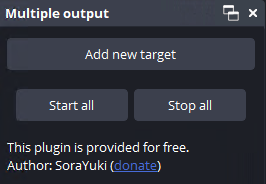
When you open the Remote Desktop, you should see the Multiple Output plugin. If not…
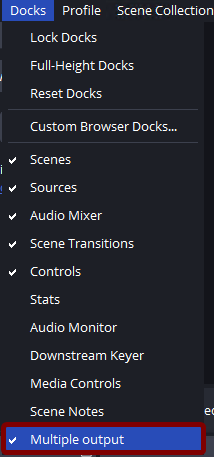
Click on “Docks” and select “Multiple output” – if this option you may need to install the plugin, Click Here and select “obs-multi-rtmp-0.6.0.0-windows-x64-Installer.exe“. Close OBS, run the installer, then open OBS and go back to the “Docks” menu.
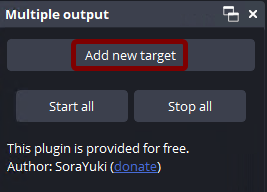
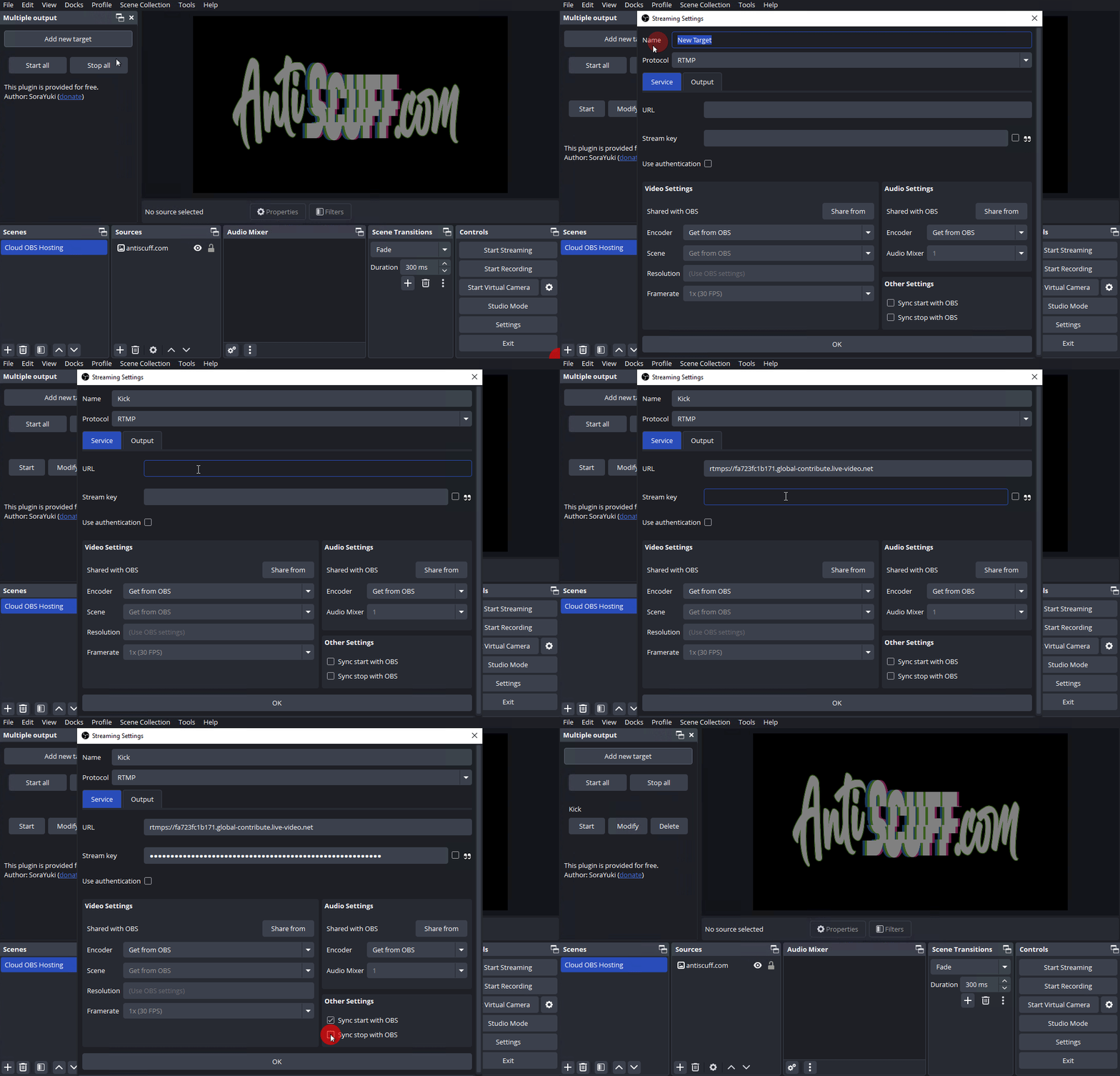
Click on Add new target
From Kick go to https://dashboard.kick.com/channel/stream
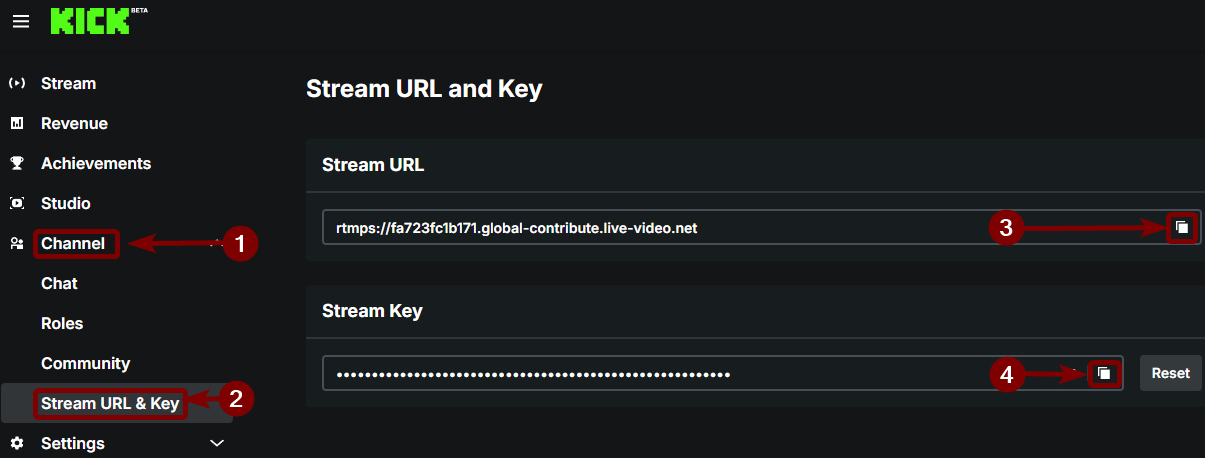
Click Channel then Stream URL & Key
You will need to copy both the Stream URL (3) and Stream Key (4)
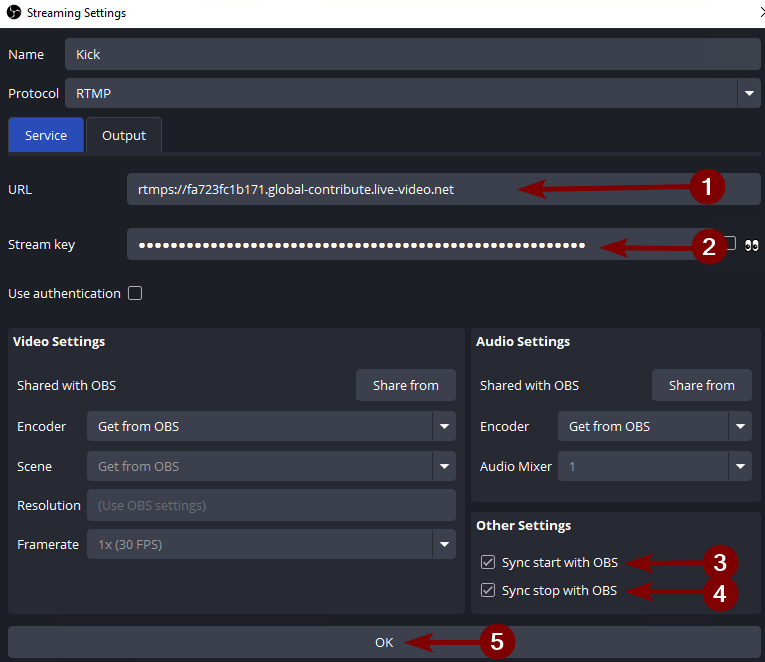
Input the URL in the URL field (1) and the Stream Key in the Stream key field (2)
Then make sure you select Sync Start with OBS (3) and Sync Stop with OBS (4) then click OK (5) – this will make sure the stream always starts when you start your normal stream and stop when stream ends.
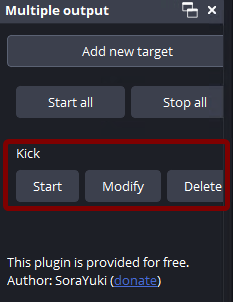
You will now see the newly added streaming destination. If you didn’t want it to automatically start or stop, leave the boxes unchecked in the previous step and start from this view when required.