
2FA (Two Factor Authentication)
Upon registering on the AntiScuff client portal, you will be prompted to set up Two Factor Authentication (2FA).
We require 2FA to be enabled on all accounts to comply with Global Payment Card Industry Data Security Standards (PCI DSS), although we do not store or process Payment methods directly, as these are handled by our Third Party provider, Stripe. This means your data and payment details are as secure as possible.
SETTING UP TWO FACTOR AUTHENTICATION
We only use Time Based Tokens, which are Application based and not SMS. SMS is not secure for 2FA.
Step by Step Guide:
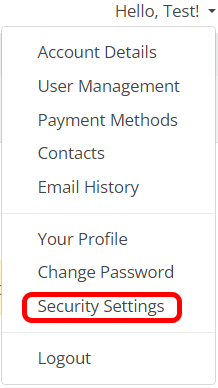
From within the Client Portal, click on your name in the top right hand corner, then select Security Settings
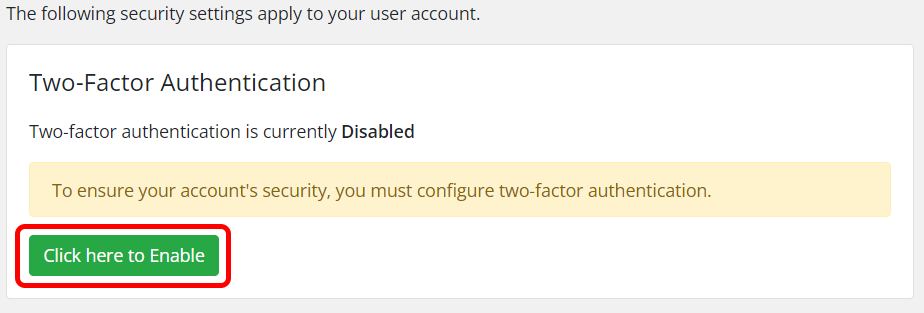
Click on “Click here to Enable“
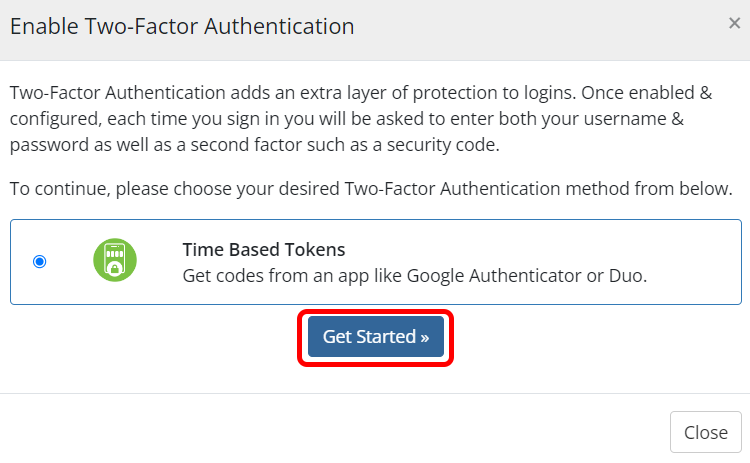
Click on “Get Started“
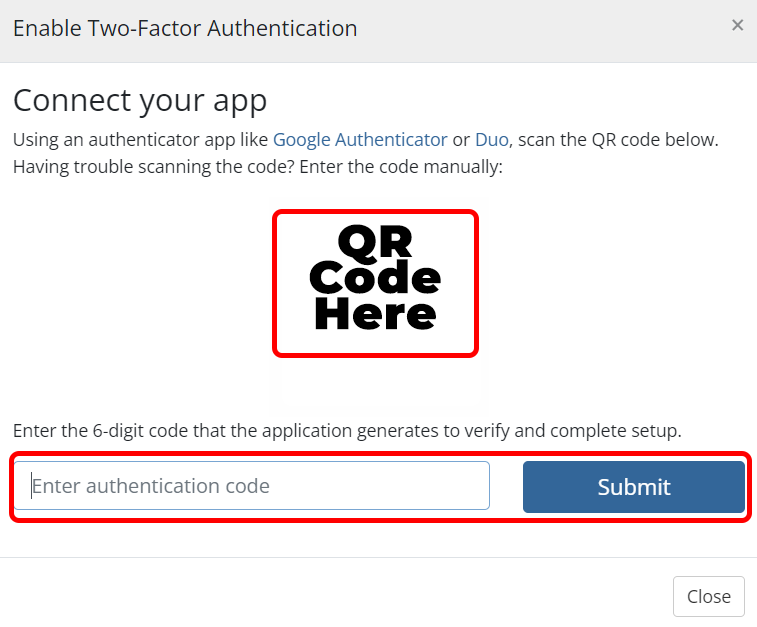
Within your favourite Authenticator Application, scan the QR code which shows on this page, then input the generated code within the “Enter authentication code” box and press Submit
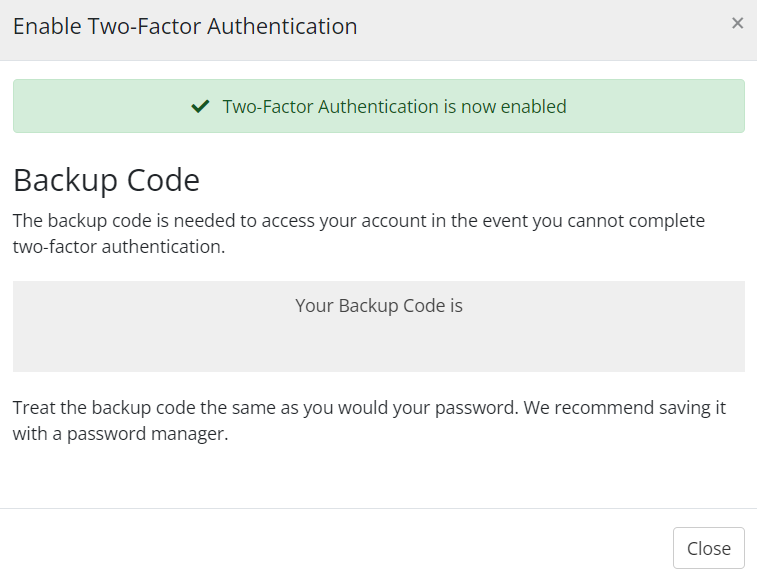
IMPORTANT: Make a note of this Backup Code! If you lose access to your authentication application, you will need this to log in!
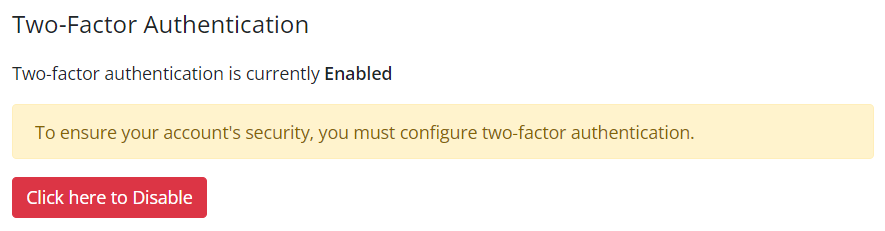
Once set up, it will look like this. Next time you log in, it will prompt you for the Two Factor Authentication code after you have input your username and password.
WHAT TO DO IF YOU CANNOT FIND YOUR TWO FACTOR AUTHENTICATION CODE
Check your go-to Authenticator apps such as Google Authenticator or Authy. It will display on these applications as antiscuff.com [REGISTERED EMAIL ADDRESS]
Use your backup code and re-register for Two Factor Authentication
If you have lost both the Authenticator and Backup Codes you will need to contact our Support Department with the following information:
Full Name
First line of Address
Postal/Zip Code
Current Service with us
This MUST be sent from your registered email address.